> For the complete documentation index, see [llms.txt](https://analog.groupthought.com/llms.txt). Markdown versions of documentation pages are available by appending `.md` to page URLs; this page is available as [Markdown](https://analog.groupthought.com/features/cart.md).
# Cart page & drawer
How to configure cart routing, the free-shipping bar, and cart upsells.
Analog has a Cart page and a Cart drawer. Two theme settings control which one opens. Both surfaces support a free-shipping bar and product upsells.
## Choose where the cart opens
The Cart page and Cart drawer have almost the same block set. Configure them separately, then use the two settings under Theme settings › Cart to choose when each one opens.
| Setting | Controls | Options |
| -------------------- | ------------------------------ | ------------------------------------------------------------------------- |
| "Cart button action" | The header cart button | "Show cart drawer" · "Navigate to cart page" |
| "Add to cart action" | What happens after add to cart | "Show cart drawer" · "Show header notification" · "Navigate to cart page" |
Use the drawer for the cart button and a header notification after add to cart to keep shoppers on the current page. Route both actions to the Cart page when you want every add to open the complete cart. "Cart icon" ("Bag", "Basket", "Cart") only changes the icon.
{% hint style="info" %}
The drawer fetches its contents after the page loads and again whenever it opens. The Cart page renders with the page.
{% endhint %}
## Free-shipping bar
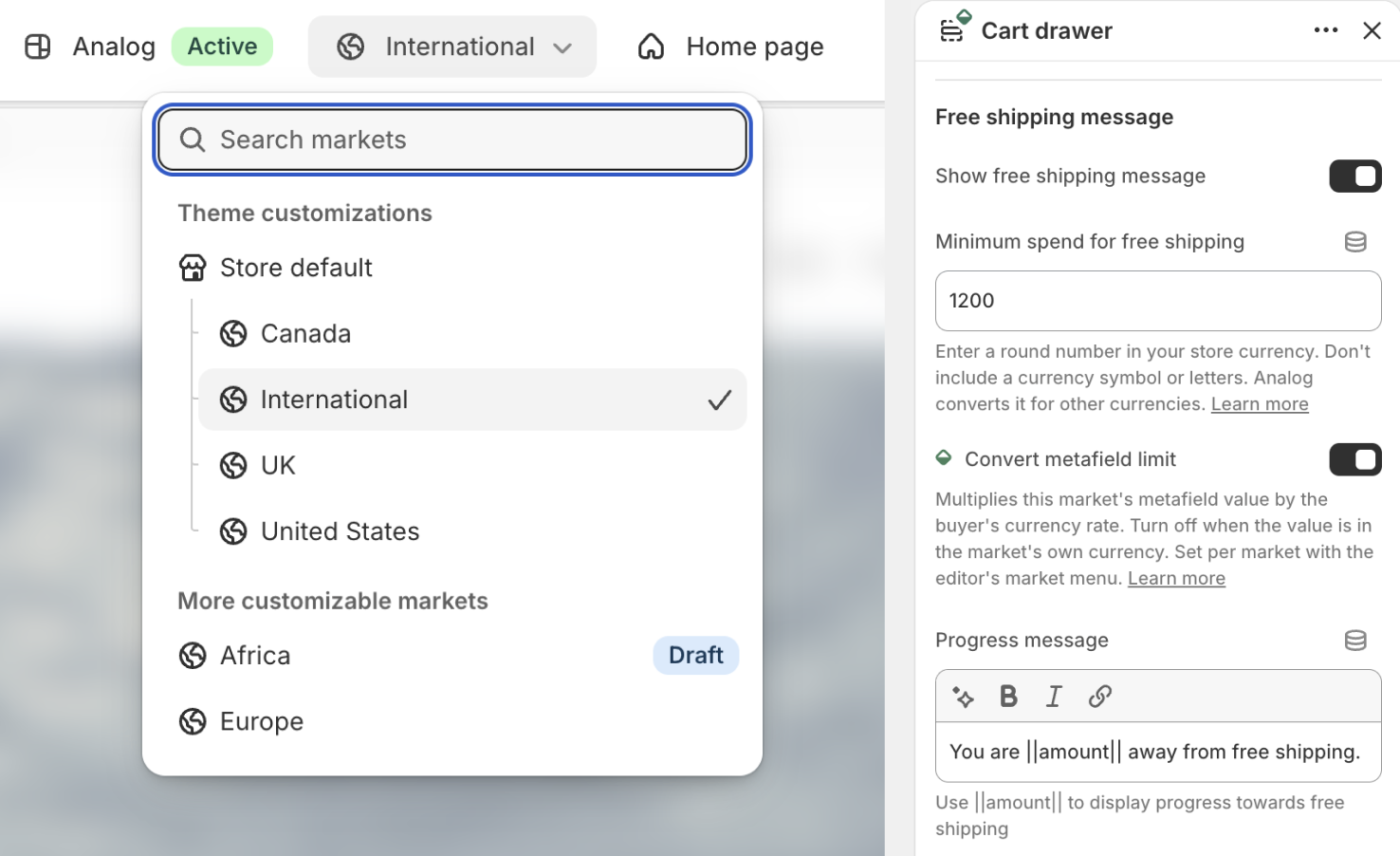
Each cart surface has its own "Free shipping message" settings. Turn on "Show free shipping message" and set "Minimum spend for free shipping". Below the threshold, the bar shows "Progress message" with the amount remaining. At the threshold, it shows "Success message" with a check icon.
Enter the threshold as a number in the store's major currency unit, such as dollars, pounds, or euros. Analog removes spaces, commas, and a decimal point, then calculates the difference in cents against the cart total.
Write the progress message with `||amount||` where the remaining amount should appear. The theme replaces it with the formatted money value in bold:
```
You are ||amount|| away from free shipping.
→ You are $12.50 away from free shipping.
```
{% hint style="warning" %}
The bar renders only when the threshold is above zero and "Progress message" isn't blank. An empty message hides the bar with no warning.
{% endhint %}
### Currencies and markets
#### Start with automatic conversion
For most stores, "Minimum spend for free shipping" is the only limit to set. Enter it in your store currency. Analog automatically converts it when a shopper uses another currency. For example, a $100 USD limit becomes about ¥15,000 in Japanese yen.
Use this setup whether you sell in one market or several. If one converted limit works everywhere, stop here. You don't need to create a market metafield.
#### Set exact limits for some markets
Shopify's currency rate doesn't include market price adjustments or shipping rate rounding. Exchange-rate changes can also produce an amount like ¥15,432 instead of a round number. Continue with a market metafield only when a market needs an exact local amount or a different store-currency limit.
1. In Shopify admin, create a market metafield definition of type **Integer**, for example `theme.free_shipping_limit`.
2. Enter the same `namespace.key` in Theme settings › Metafields › "Market free shipping limit".
3. Set the metafield value on each market that needs its own threshold.
Once the key is set, the Cart page and Cart drawer show "Convert metafield limit". It is off by default since most market metafields hold an exact amount in the market's currency. The setting applies only to the market selected in the theme editor.
The checkbox answers one question: what currency did you use for the metafield value?
* Leave it off when the value already uses the market's currency, such as 150 for a $150 CAD threshold in Canada.
* Turn it on when the value uses the store's currency. This works for a market that offers several currencies because Analog converts the value to the currency selected by the shopper.
```mermaid
flowchart TD
A{"Is “Market free shipping limit” configured?"}
A -- No --> B["Use “Minimum spend for free shipping” and convert it from the store currency"]
A -- Yes --> C{"Does the selected market have a metafield value?"}
C -- No --> B
C -- Yes --> D{"Is “Convert metafield limit” on?"}
D -- No --> E["Use the metafield as an exact market-currency amount"]
D -- Yes --> F["Treat the metafield as a store-currency amount and convert it for the shopper"]
```
#### Select a market in the theme editor
Select a market from the theme editor's market menu before changing "Convert metafield limit". The selected market controls both the metafield value and the checkbox.
The editor opens in "Store default". This context supplies the checkbox value that markets inherit, but it is not a market and cannot have a `theme.free_shipping_limit` value. Its preview uses "Minimum spend for free shipping" instead. The live storefront always has a market context, so shoppers never see "Store default".
Select a market before changing Convert metafield limit. Store default has no market metafield value.
#### Example: a USD store with four markets
Configure a USD store with four markets like this:
| Market | Metafield value | "Convert metafield limit" | Free-shipping threshold |
| ----------------------------- | --------------- | ------------------------- | ---------------------------------------------------------- |
| United States | 100 | Off (default) | $100 USD |
| Canada | 150 | Off (default) | $150 CAD |
| Europe | 75 | Off (default) | €75 |
| International (rest of world) | 180 | **On** | $180 USD converted to the currency selected by the shopper |
Set all four values in Shopify admin. Only International needs an editor override: select it from the market menu and turn "Convert metafield limit" on. Its value is $180 USD, so Analog converts it to the currency selected by the shopper. The other three markets keep the default.
A market without a metafield value ignores the checkbox and converts "Minimum spend for free shipping". This keeps the bar working before you configure a new market.
{% hint style="warning" %}
The Cart page and Cart drawer have separate free shipping settings. Set the checkbox in both places for each market that needs conversion.
{% endhint %}
#### Why conversion uses JavaScript
Liquid knows the cart currency but cannot read Shopify's currency rate. Analog uses `x-shipping-progress` in the browser to convert the threshold, amount remaining, progress bar, and success state. Without it, Liquid could compare a converted cart against the original store-currency amount and show success too early.
Cart updates replace the bar with new HTML, so the directive runs again after each update. The directive ships with the theme bundle but only attaches to a bar when the store and cart currencies differ and the threshold needs conversion. See [x-shipping-progress](/reference/alpine/internals.md#x-shipping-progress-analog) for the implementation details.
## Upsell
The Cart upsell block adds products without leaving the cart. Select products in "Products" and set "Product limit" (up to 5). Products already in the cart and sold-out products are removed automatically.
A single-variant product is added in one click. A multi-variant product opens quickview so the shopper can select a variant. Use single-variant add-ons, accessories, or gift wrap when possible.
### Paired product upsells
After you [set up paired product upsells](/features/product.md#paired-product-upsells), turn on "Prioritize paired upsells" in the Cart upsell block. Analog reads the pairings from each product in the cart. They appear before "Products", starting with the pairings for the most recently added cart product.
### Promote the product that unlocks free shipping
"Promote a shipping upsell product" compares the upsell products with the free-shipping amount remaining. Before the threshold is met, it moves the cheapest product that covers the remaining amount to the first position:
```
Cart total $42 · free shipping at $50 · gap $8
Candidates: $30, $12, $9, $4
→ promoted: $9 (the cheapest product ≥ $8)
```
The $4 product doesn't reach the threshold. The $30 product does, but costs more than the $9 product. Once the threshold is met, the original list order is used. Show the free-shipping bar with this option so the amount and suggested product appear together.
Shipping upsells require an exact threshold. Analog chooses the product in Liquid, which cannot read Shopify's currency rate. If the threshold needs conversion, the list keeps its normal order. Set an exact market metafield value and leave conversion off to promote a product in that market. See [Currencies and markets](#currencies-and-markets).
## Recipes
### Low-friction drawer flow
Use the notification after add-to-cart so the shopper keeps browsing:
* Theme settings › Cart › Cart button action: "Show cart drawer"
* Theme settings › Cart › Add to cart action: "Show header notification"
### Free-shipping progress in the drawer
Use the threshold and the `||amount||` placeholder to count down the gap:
* Cart drawer › Free shipping message › Show free shipping message: on
* Free shipping message › Minimum spend for free shipping: "100"
* Free shipping message › Progress message: "You are ||amount|| away from free shipping."
### Gap-closing upsell
Use single-variant add-ons and shipping promotion so the cart sells the gap:
* Cart drawer › Add block: Cart upsell
* Cart upsell › Products: single-variant add-ons at varied prices
* Cart upsell › Promote a shipping upsell product: on
* Cart drawer › Free shipping message › Show free shipping message: on
## See also
* [Product page & quickview](/features/product.md): the quickview used for multi-variant upsells
* [Badges, ratings & preorder](/features/merchandising.md): preorder labels in cart lines
* [Metafields reference](/reference/metafields.md): upsell list and line item property contracts
* [Header, toolbar & navigation](/features/header.md): the cart button