> For the complete documentation index, see [llms.txt](https://analog.groupthought.com/llms.txt). Markdown versions of documentation pages are available by appending `.md` to page URLs; this page is available as [Markdown](https://analog.groupthought.com/features/variants.md).

# Siblings & grouped variants

Use siblings to link separate product listings, or option media to have many images for each colorway.

Shopify assumes that each variant will have exactly one variant image.

You are reading this article because that's not how your product photography works.

Most products that come in both "Color" and "Size" will have mutliple photos of each "Color", and no photos that are specific to "Size".

**Shopify Model**

| Color  | Size  | Photo                        |
| ------ | ----- | ---------------------------- |
| Green  | Small | Photo of "Green" in "Small"  |
| Green  | Large | Photo of "Green" in "Large"  |
| Purple | Small | Photo of "Purple" in "Small" |
| Purple | Large | Photo of "Purple" in "Large" |

**Your Reality**

| Color  | Size  | Photo                                                     |
| ------ | ----- | --------------------------------------------------------- |
| Green  | Small | 8 photos of "Green", no photos that are specific to size  |
| Green  | Large | 8 photos of "Green", no photos that are specific to size  |
| Purple | Small | 6 photos of "Purple", no photos that are specific to size |
| Purple | Large | 6 photos of "Purple", no photos that are specific to size |

Shopify did release an app to help merchants manage this problem, [Combined Listings](https://apps.shopify.com/combined-listings), but it is only available to Plus merchants. Combined Listings solves this problem by creating a "wrapper product" that contains all of the various color options.

We offer two other alternatives that are available to all merchants on all plans.

| Method                                | Color                             | Images                                           |
| ------------------------------------- | --------------------------------- | ------------------------------------------------ |
| Siblings (Color linked products)      | Each color is a different product | The product images are the color images          |
| Option media (Color linked galleries) | Color is a product options        | Images for each color are stored in a metaobject |

Both options use metaobjects to accomplish this goal.

**Siblings (Color linked products)** link separate products as swatches. Each colorway keeps its own URL, images, inventory, and SEO. Selecting a sibling replaces the current product without reloading the page.

**Option media (Color linked galleries)** stays on one product and changes the gallery for the selected option.

Functionally they accomplish the same goal in two different ways, if you want a bunch of different photos for each color you can use either method. If you choose to use combined listings, the only major difference is the wrapper product that the app creates.

<figure><img src="https://256838974-files.gitbook.io/~/files/v0/b/gitbook-x-prod.appspot.com/o/spaces%2FDFCPNagZLqTjKwJXAF6W%2Fuploads%2Fgit-blob-d59f056bfcfbdd0ffacd23a460a6087fe9ee796e%2Fsibling-swatches.jpg?alt=media" alt="Sibling swatches on a product page linking separate colorway products"><figcaption><p>This product is using siblings, but the only way to tell is by watching the URL when you click a color swatch option</p></figcaption></figure>

## Choose siblings or option media

If you want each colorway to have its own page, and you want to manage colors as separate products, use siblings.

If you want everything in one product, and don't mind managing your images inside a metaobject, use Option media.

If you are on Plus and like the idea of wrapper products, use Combined listings. The decision between Siblings and Combined listings for Plus merchants is usually above our paygrade. Typically something about attribution models or ERP integrations. Both Siblings and Combined listings work equally well in all our themes so the decision has no theme constraints.

It's rarely needed, but Siblings and Option media can be use together on one product. Siblings handle cross-product navigation and option media handles the gallery for a secondary option. It's not a reccomended path but it is possible for true edge-case products that need both. We currently don't support two separate options for Option media on one product, but we're exploring it for a future release. If you have that need, reach out in support.

## Set up siblings

Create a metaobject for sibling groups and a product metafield that points to it. Each metaobject entry holds one group of products. Assign the same entry to every product in the group.

```mermaid
flowchart LR
    P["Product<br/>“Zelda Swimsuit in Sun Yellow”"] -->|"theme.siblings"| E["Metaobject entry<br/>“Siblings Zelda”"]
    E -->|"products"| L["Product list<br/>Sun Yellow · Dark Blue"]
    L --> S["Swatch row on<br/>both products"]
```

Analog needs two keys: the product metafield key and the product-list field inside the metaobject. The screenshots mark them ① and ②.

{% stepper %}
{% step %}

### Create a metaobject

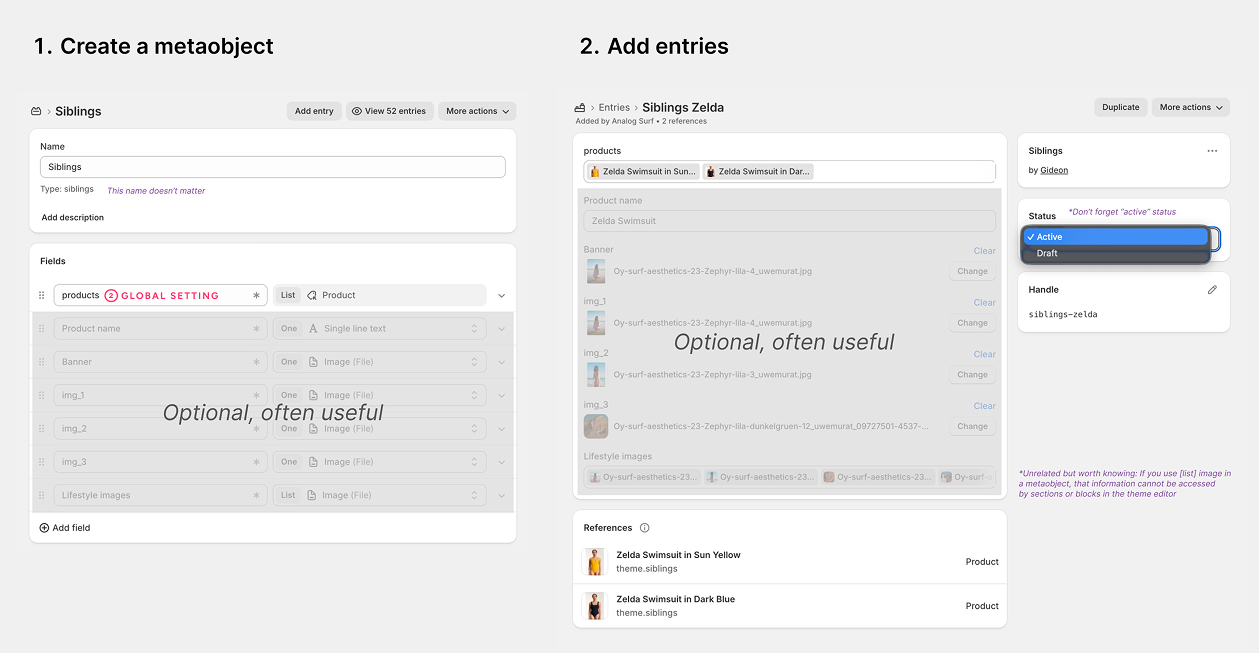
Open **Settings → Custom data → Metaobjects** and create a definition. Add a field with the type **Product** and turn on **List**. Set the field key to `products`. The definition name can be anything.

<figure><img src="https://256838974-files.gitbook.io/~/files/v0/b/gitbook-x-prod.appspot.com/o/spaces%2FDFCPNagZLqTjKwJXAF6W%2Fuploads%2Fgit-blob-eeaab2b39a6a0778847056fd593082ab30b27bad%2Fsiblings-mobj.jpg?alt=media" alt="A Shopify metaobject definition holding a products field typed as a list of products, beside a metaobject entry that lists two sibling products and its references"><figcaption><p>Steps 1 and 2. The <code>products</code> field name is global setting ②. The other fields are optional.</p></figcaption></figure>

You can add other fields for content shared by the group, such as a name, banner, or images. Analog only uses `products` for the swatches.
{% endstep %}

{% step %}

### Add entries

Add one entry for each sibling group. In `products`, include every product in the group, including the current product. Analog uses the current product as the selected swatch.

Set the entry status to **Active**. A draft entry returns no products.

After step 4, use the entry's "References" list to check that every product points back to it.
{% endstep %}

{% step %}

### Create a product metafield

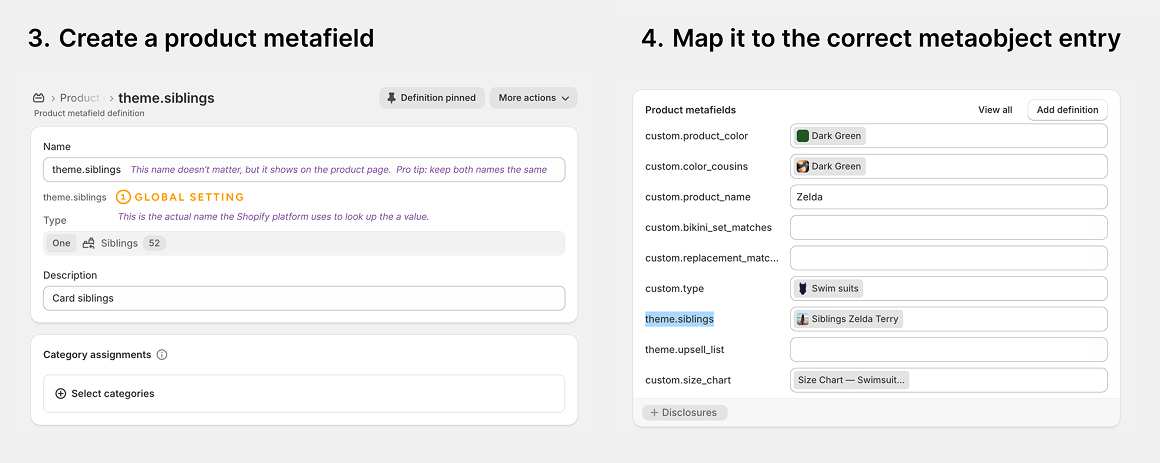
Open **Settings → Custom data → Products** and create a definition. Set its namespace and key to `theme.siblings`. Choose the type **Metaobject**, then select the definition from step 1. Analog reads the namespace and key; the definition's display name can be anything.

<figure><img src="https://256838974-files.gitbook.io/~/files/v0/b/gitbook-x-prod.appspot.com/o/spaces%2FDFCPNagZLqTjKwJXAF6W%2Fuploads%2Fgit-blob-727dc123dba1756f7d12e1af791a46d602586483%2Fsiblings-metafield.jpg?alt=media" alt="A Shopify product metafield definition named theme.siblings typed as one Siblings metaobject, beside a product&#x27;s metafield list with theme.siblings set to the Siblings Zelda Terry entry"><figcaption><p>Steps 3 and 4. The namespace and key <code>theme.siblings</code> is global setting ①.</p></figcaption></figure>
{% endstep %}

{% step %}

### Map it to the correct metaobject entry

Open each product and find "Product metafields". Set `theme.siblings` to its sibling-group entry.

Repeat this for every product in the entry's list. A product without the metafield shows no swatches, even when another product lists it.
{% endstep %}

{% step %}

### Enter the two global settings

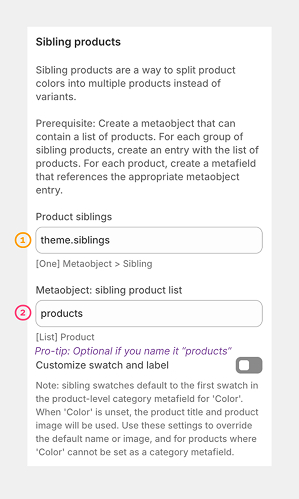
In the theme editor, open **Theme settings → Metafields → Sibling products**.

<figure><img src="https://256838974-files.gitbook.io/~/files/v0/b/gitbook-x-prod.appspot.com/o/spaces%2FDFCPNagZLqTjKwJXAF6W%2Fuploads%2Fgit-blob-c403d3822cc08f9fd80168f21d91a64f26bbee5a%2Fsibings-settings.jpg?alt=media" alt="Analog theme settings under Metafields showing Product siblings set to theme.siblings and Metaobject sibling product list set to products"><figcaption><p>① is the metafield namespace and key. ② is the field name inside the metaobject.</p></figcaption></figure>

| Setting                              | Value            | Where it comes from               |
| ------------------------------------ | ---------------- | --------------------------------- |
| ① "Product siblings"                 | `theme.siblings` | The namespace and key from step 3 |
| ② "Metaobject: sibling product list" | `products`       | The field name from step 1        |

Enter `theme.siblings` in "Product siblings". "Metaobject: sibling product list" defaults to `products`; change it only if you used a different field key.
{% endstep %}

{% step %}

### Add the swatches to the product page

Product cards use the sibling group automatically. "Enable sibling swatches" under Theme settings → Cards is on by default.

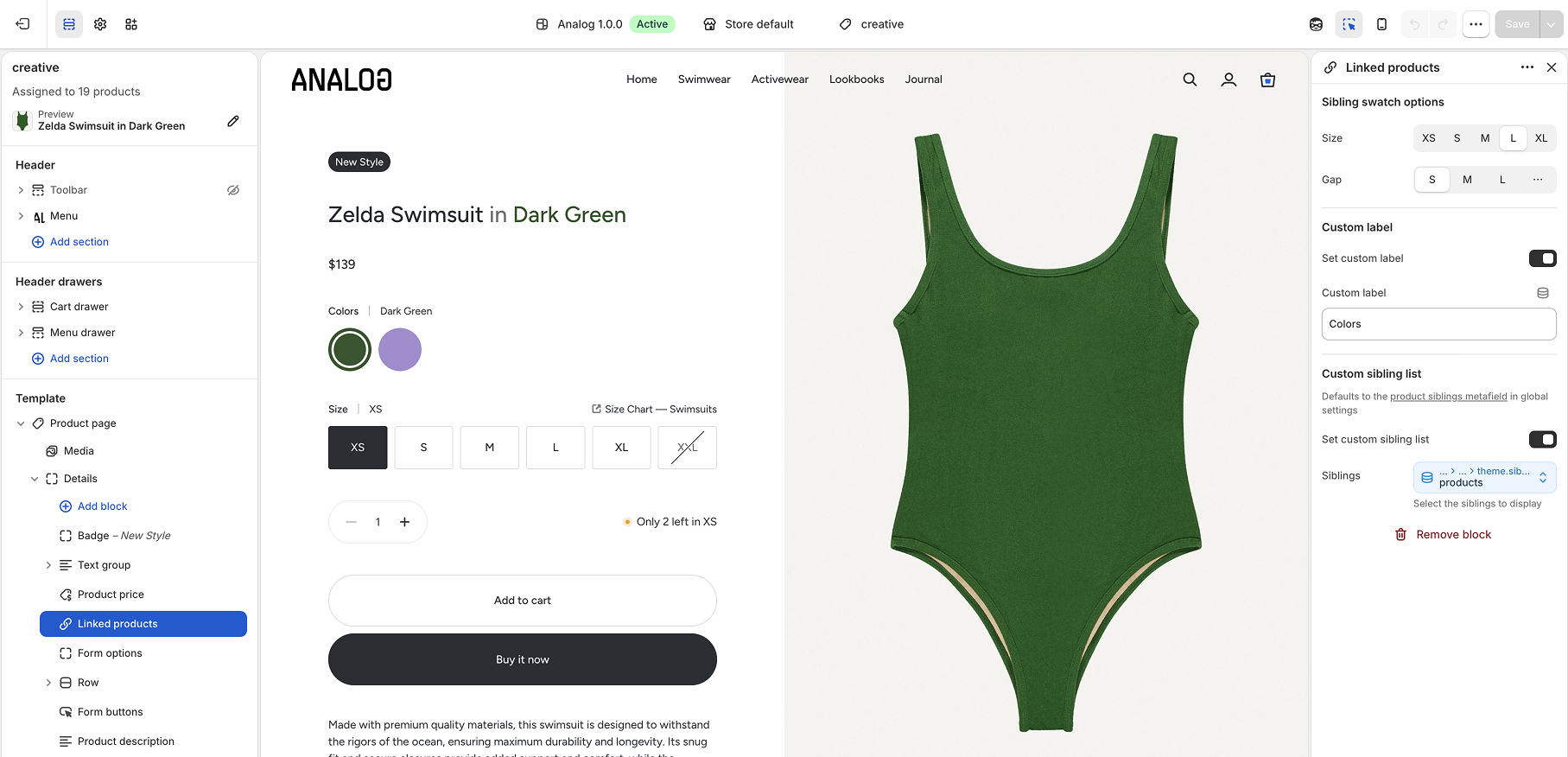
For the product page, add the "Linked products" block inside the product form. The Advanced product template already includes it.
{% endstep %}
{% endstepper %}

### Where a swatch gets its color and name

Each swatch draws from the product's category "Color" metafield (`shopify.color-pattern`): the color's swatch and its label. Without a category color, the swatch falls back to the product's featured image and title. To override either, turn on "Customize swatch and label" and name a "Custom swatch image" and "Custom color name" metafield per product.

### Change the block's label and list (optional)

The block uses the "Color" translation as its heading and the global sibling group as its product list.

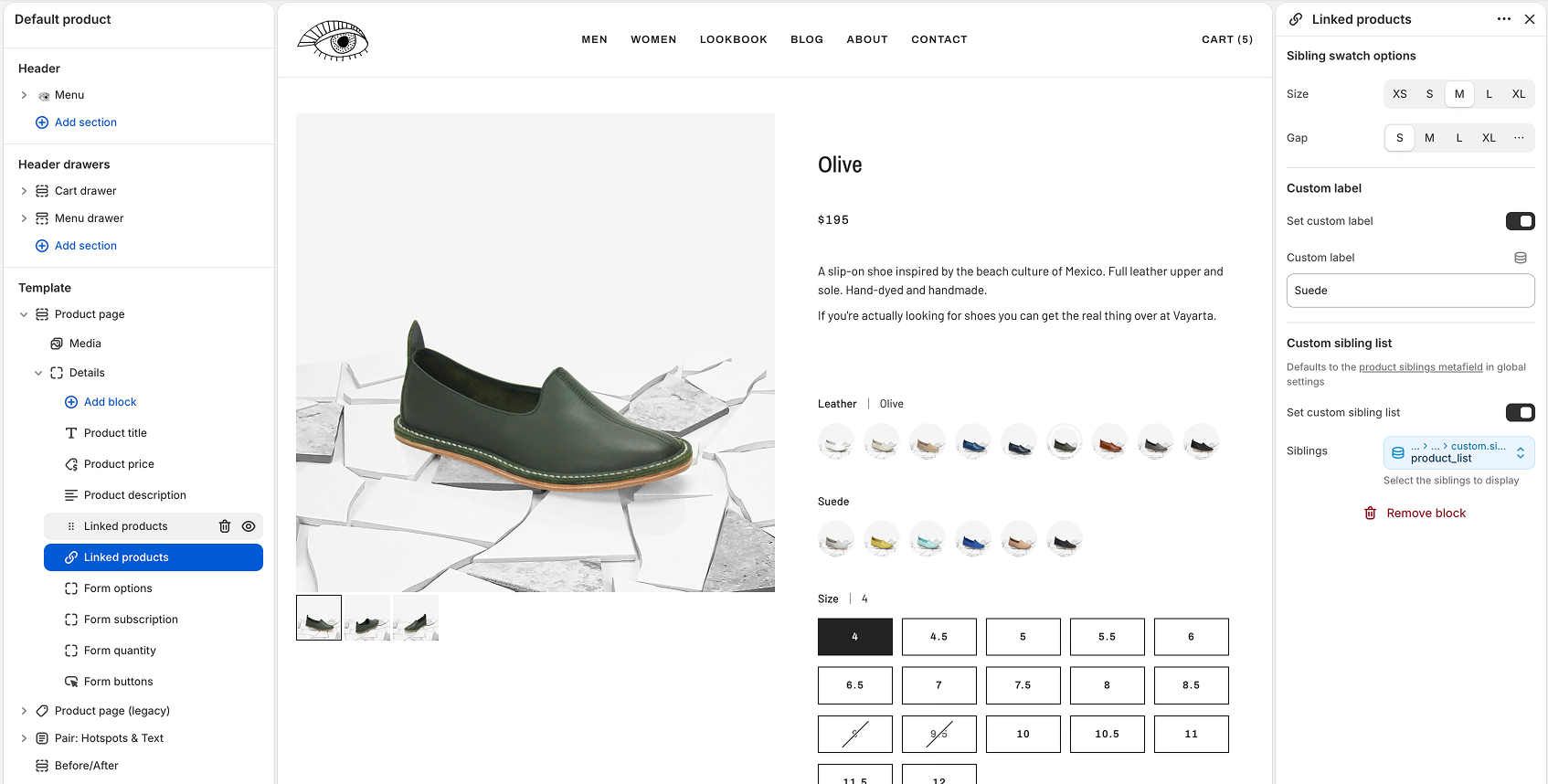
To add another sibling row, add another "Linked products" block. Turn on "Set custom sibling list" and select the products for that row. Turn on "Set custom label" to name it, for example "Material" or "Season". These overrides only affect that block; product cards continue to use the global sibling group.

<figure><img src="https://256838974-files.gitbook.io/~/files/v0/b/gitbook-x-prod.appspot.com/o/spaces%2FDFCPNagZLqTjKwJXAF6W%2Fuploads%2Fgit-blob-4e4ddf6bf664b65472c11652f3f14e1529d514c0%2Fsibling-muti-group.jpg?alt=media" alt="Linked products block settings in the theme editor with Set custom sibling list turned on and a product list selected"><figcaption><p>Two sibling groups on one product page.</p></figcaption></figure>

### Use the metaobject in the rest of the template

Analog reserves the `products` field for the sibling list. Other fields remain available as dynamic sources under **closest product → theme.siblings → your field**. Use them for content shared by the whole group:

| Field on the entry                                 | Where it is useful                                                                |
| -------------------------------------------------- | --------------------------------------------------------------------------------- |
| A group name, such as "Zelda Swimsuit"             | A heading that reads "Zelda Swimsuit in every color" on all products in the group |
| A banner image                                     | An image tile or a Pair section that changes with the group                       |
| Numbered image fields, such as `img_1` and `img_2` | A marquee or gallery shared by the group                                          |

Connect the block setting to the dynamic source. A value entered directly is stored on the template and appears on every product that uses it.

{% hint style="info" %}
A field with the type **List of images** cannot be reached this way. Use single image fields for anything a section needs to read.
{% endhint %}

<details>

<summary>Siblings from a collection handle</summary>

Older stores can point "Product siblings" at a single-line text metafield with a collection handle. The collection's products become the sibling set. Prefer the metaobject setup because it doesn't depend on collection membership or sort order.

</details>

## Set up option media

Add a list of media metaobjects to the product. Each entry pairs a color swatch reference with a file list containing images, videos, or both. Analog uses the first entry whose swatch label matches a selected option value and replaces the product media with that file list. Keep labels unique since the first match wins.

When option media or siblings are active, the gallery re-renders after each change. "Scroll to variant image" is disabled because the gallery is replaced instead of scrolled.

## Recipes

### Custom swatch images

Use the override metafields when the category "Color" swatch is not enough:

* Theme settings › Metafields › Customize swatch and label: on
* Metafields › Custom swatch image: `theme.sibling_image`
* Metafields › Custom color name: `theme.sibling_label`

### Shop-the-look swatch strip

Use the block's custom list to cross-link related products without any metafields:

* Product page › Linked products block › Set custom sibling list: on
* Linked products › Siblings: the related products
* Linked products › Set custom label: on, e.g. "Complete the look"

### Gallery per print on one product

Use option media so a second option reshuffles the photos inside each colorway:

* One metaobject entry per print, pairing a color swatch with its media list
* Theme settings › Metafields › Option media metaobject: `theme.product_option_media`

## Technical details

A sibling swatch preloads its product markup on hover or focus. On click, Analog replaces the product section and updates the URL without reloading the page. The sibling URL includes the current option selection, so a selected size can stay selected on the new product.

The in-place update requires matching product structures. Otherwise, the swatch works as a normal link:

* **Option positions and names must match.** The carry-over walks the two products' options by array position and name. If "Red Tee" has Size then Fit and "Blue Tee" has Fit then Size, the selection cannot be copied. Keep option order identical across a sibling set.
* **The template suffix must match.** A sibling on a different product template cannot be fetched with the correct layout, so the swatch opens the sibling product page.

{% hint style="warning" %}
A mismatched set still renders and links, but it loses the option selection and in-place update. If size resets when switching colors, check that every product uses the same option names in the same order.
{% endhint %}

Related and recently viewed sections update as they scroll into view after a sibling change. This only happens on the product page. A sibling change inside quickview or Featured product stays inside that product view. See [product surfaces](/features/product.md).

### Product card swaps

Product cards use the same server-owned idea at card scope. A swatch fetches a complete card for the selected sibling or variant and morphs it into the existing card frame without changing the page URL. That response can include the selected product's complete slideshow, price, badges, destinations, and actions instead of asking JavaScript to patch each field separately.

Cards preload likely responses and their first images so the server-rendered swap does not add a visible delay. On mobile, the one or two cards crossing the center of the viewport preload because there is no hover opportunity. See [Product card architecture](/developer-platform/product-cards.md) for the rendering, preloading, and image-transition contracts.

## See also

* [Metafields reference](/reference/metafields.md): sibling and option media data contracts
* [Product page & quickview](/features/product.md): where sibling updates apply
* [Badges, ratings & preorder](/features/merchandising.md): variant badges with sibling swatches
* [Product card architecture](/developer-platform/product-cards.md): how card selections render and preload